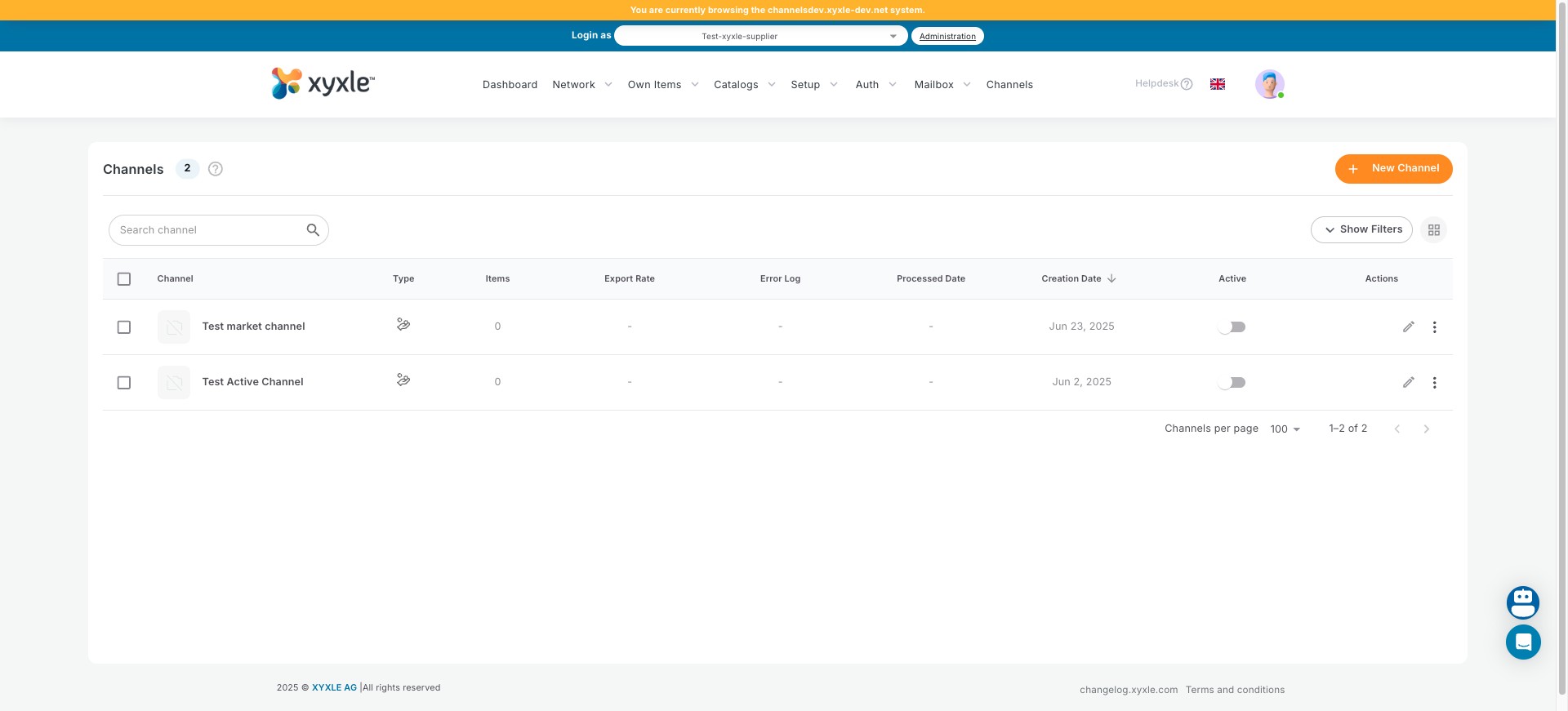
Xyxle - Channels Dashboard actions explained
Navigate to the Channels section.
Click on "Channels".
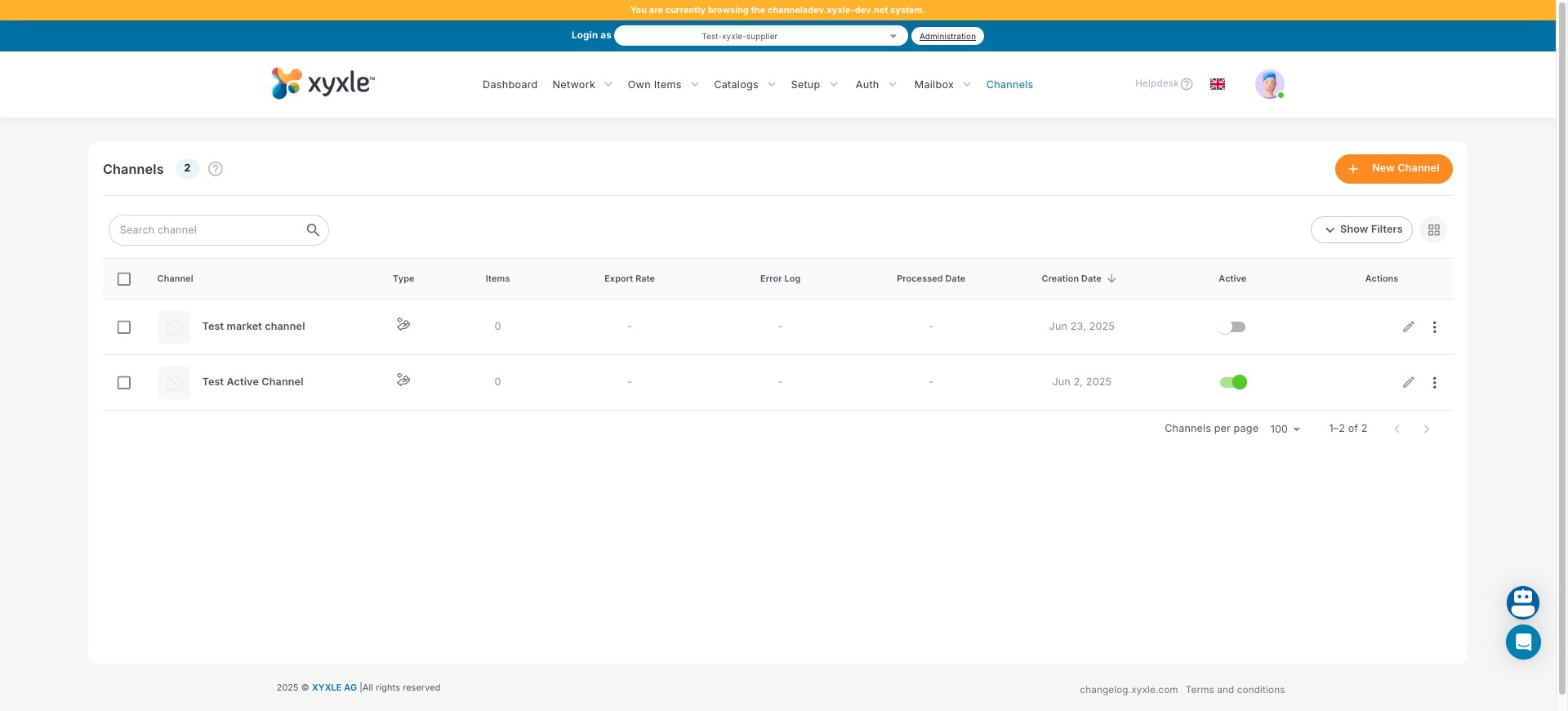
You can search for channels using the search bar.
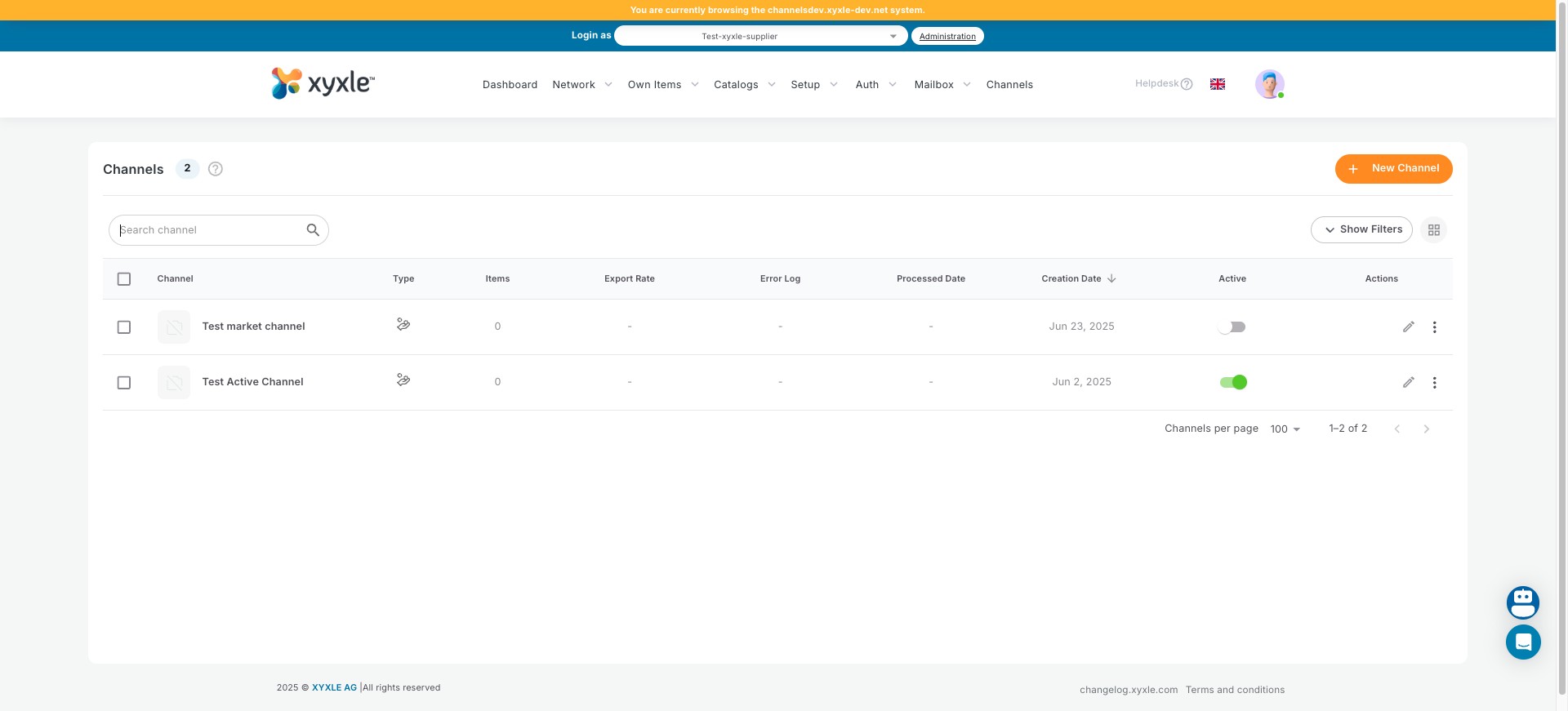
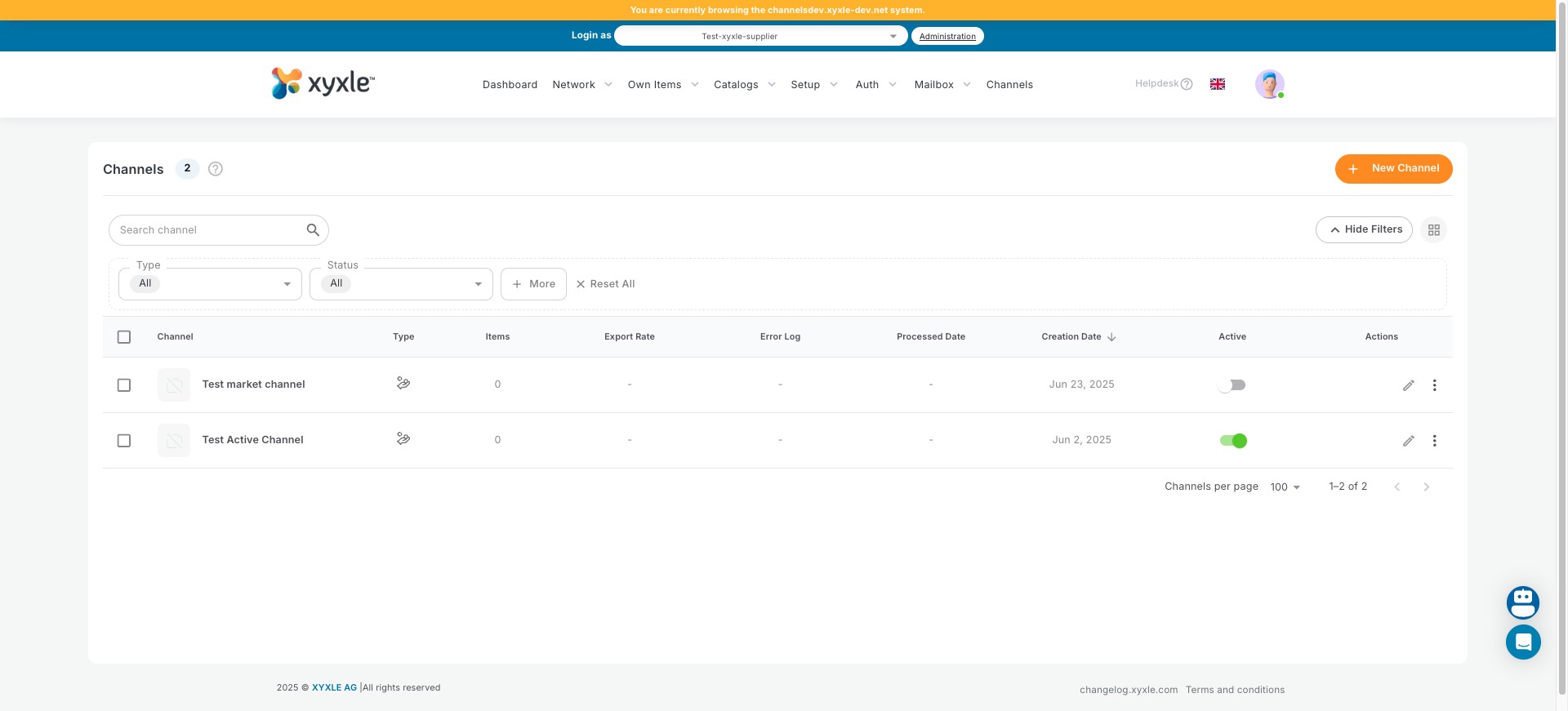
Click on Hide/Show filters.
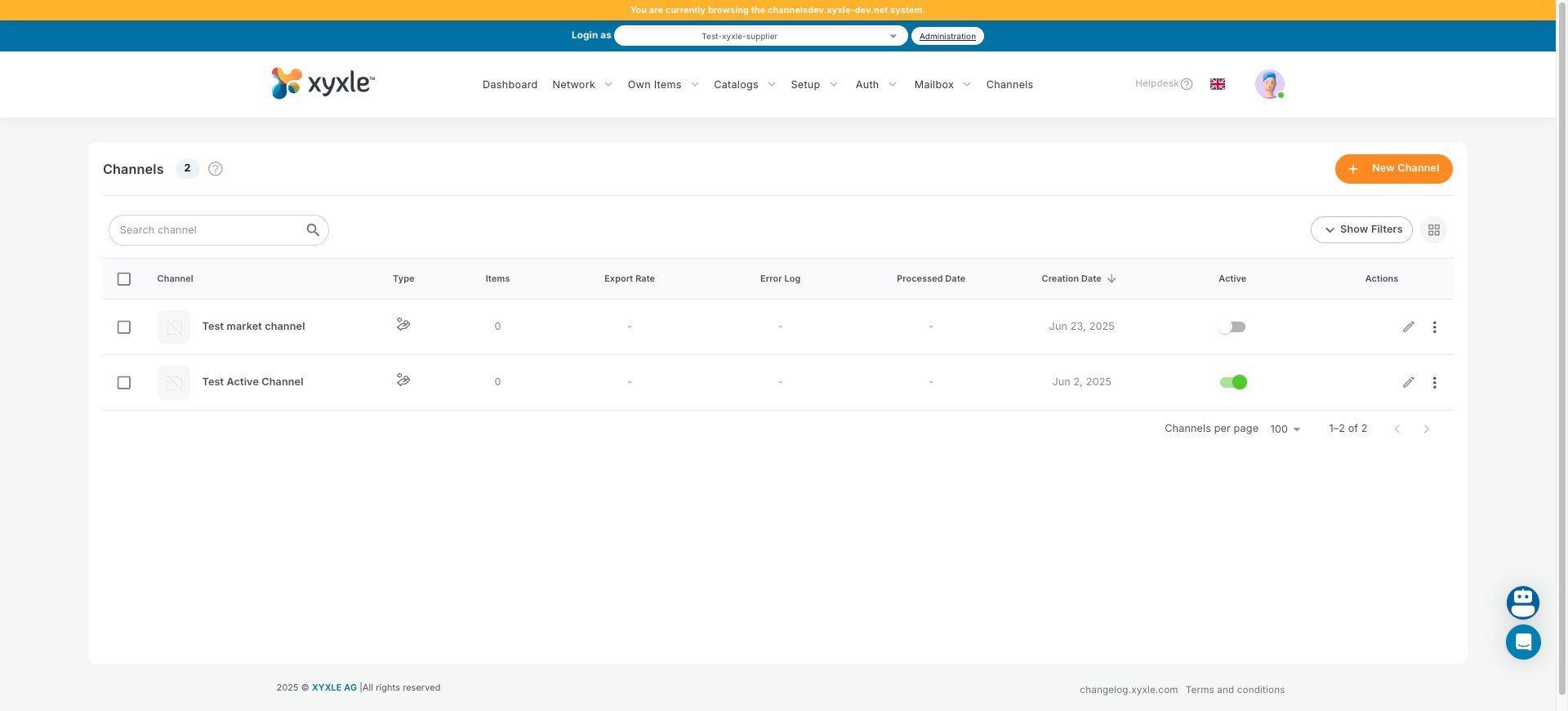
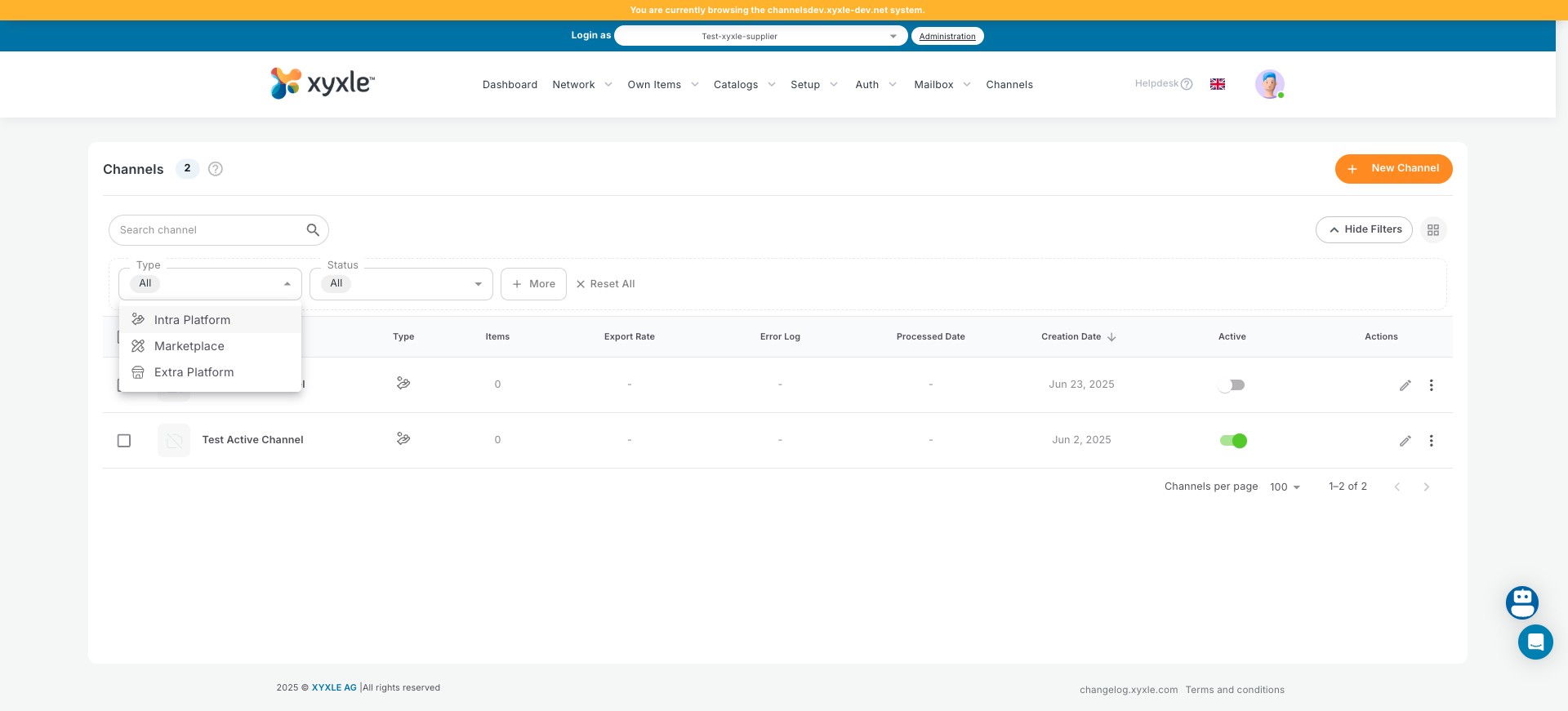
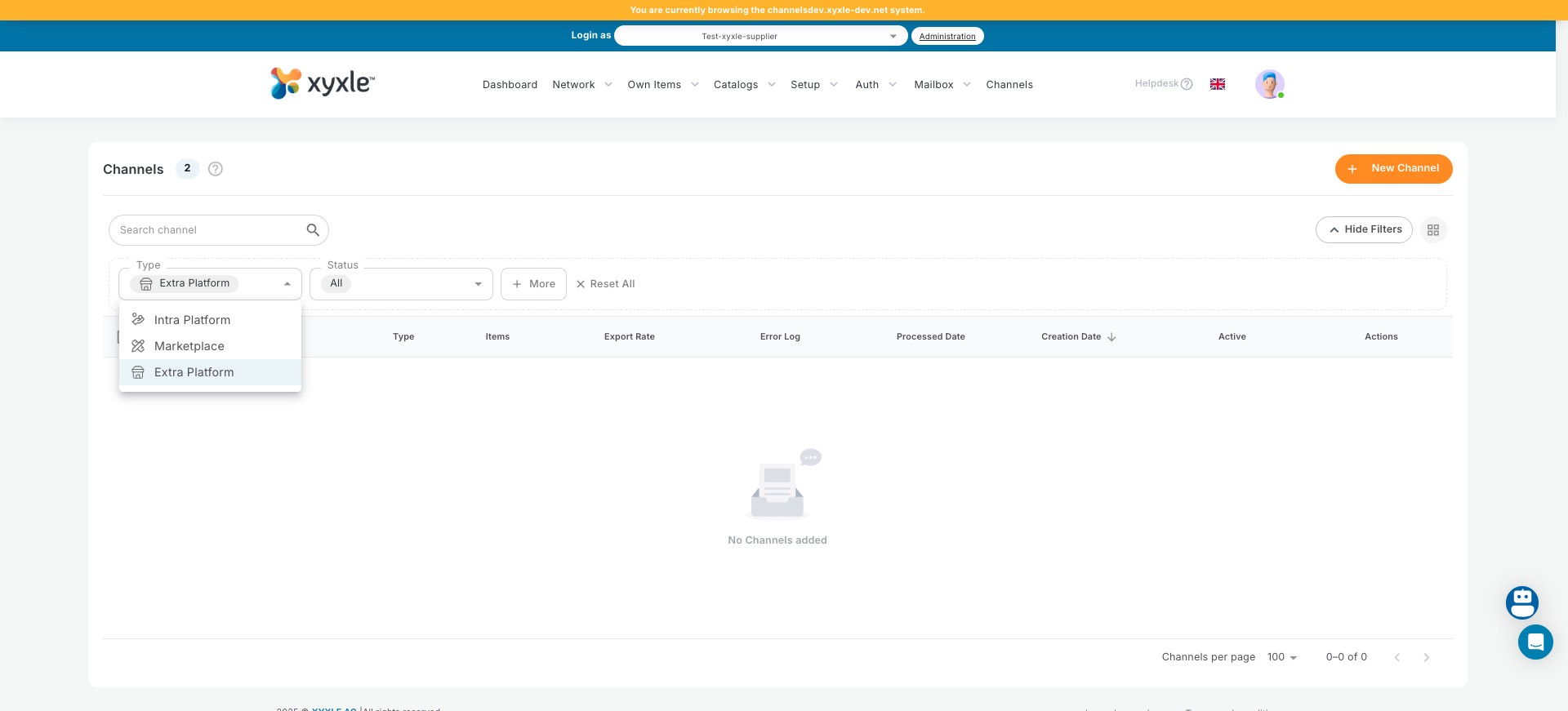
You can filter by "Type".
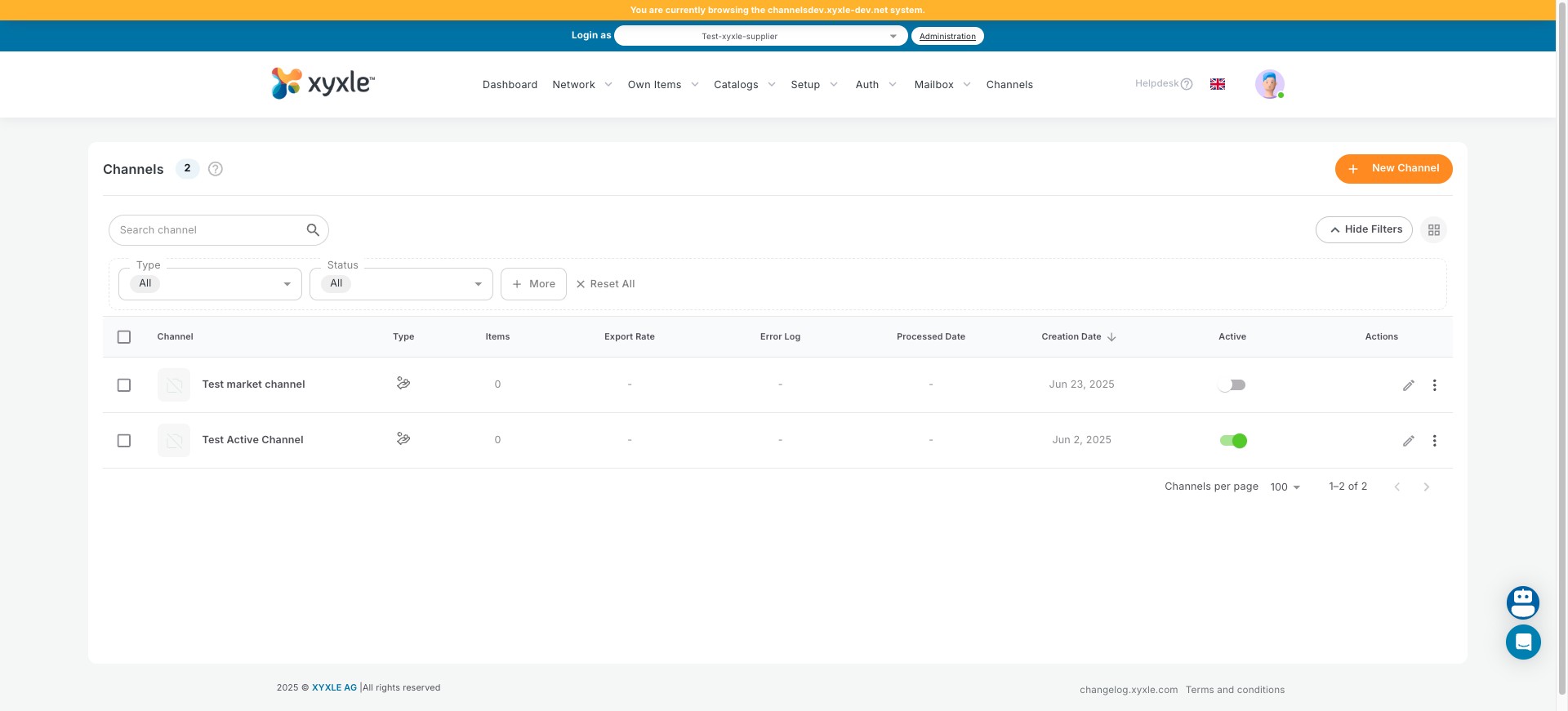
Pick one of the following.
Click here to reset the filter.
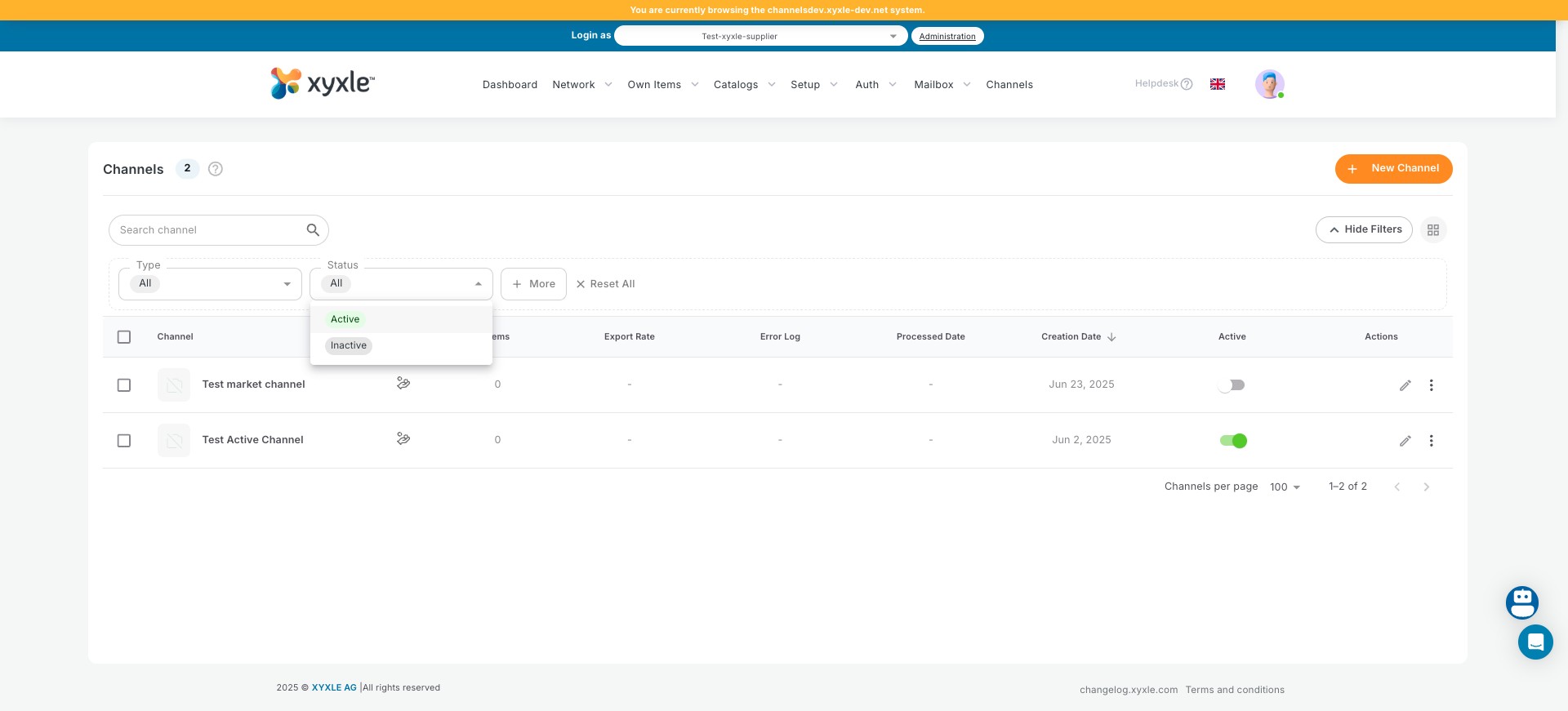
Click on "Status".
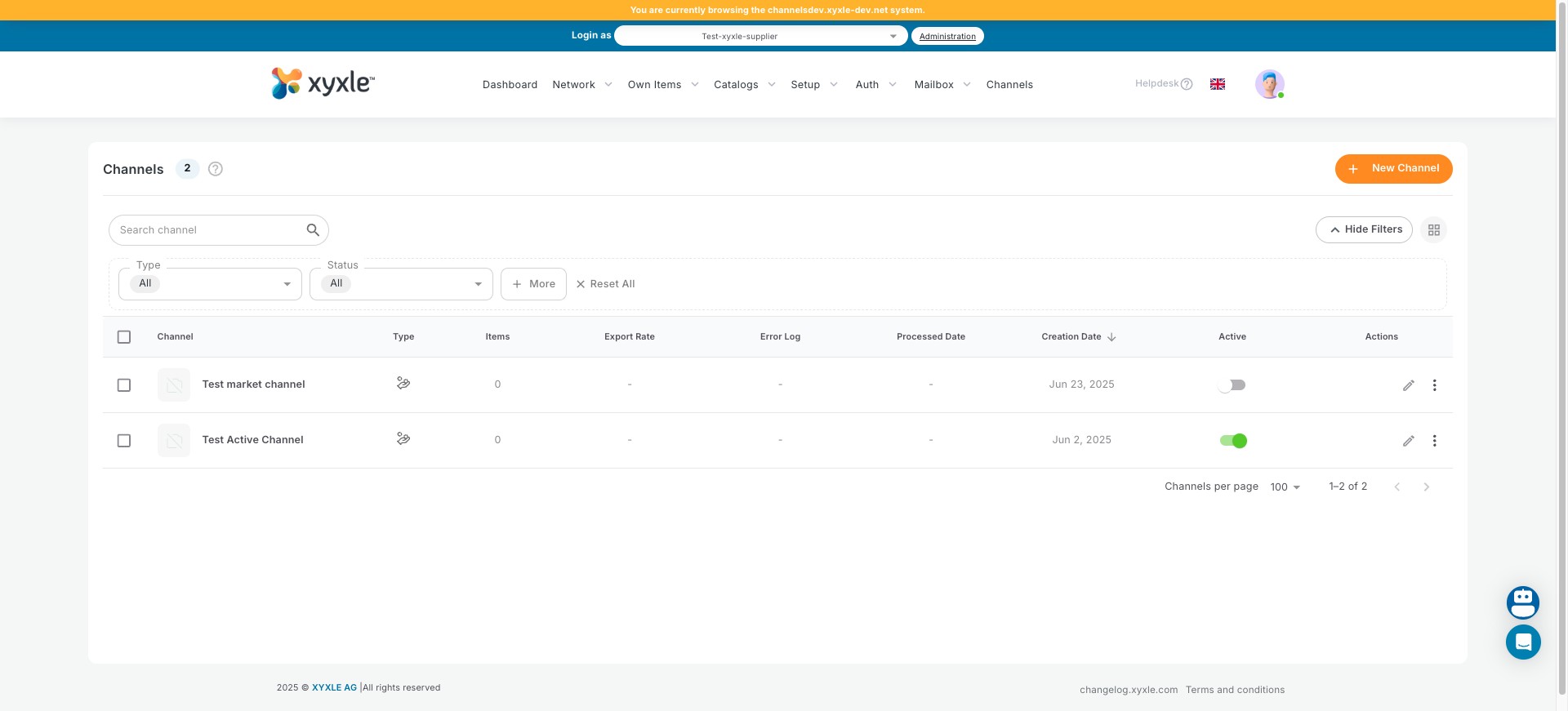
Filter to show only "Active" channels.
Click this to hide filters.
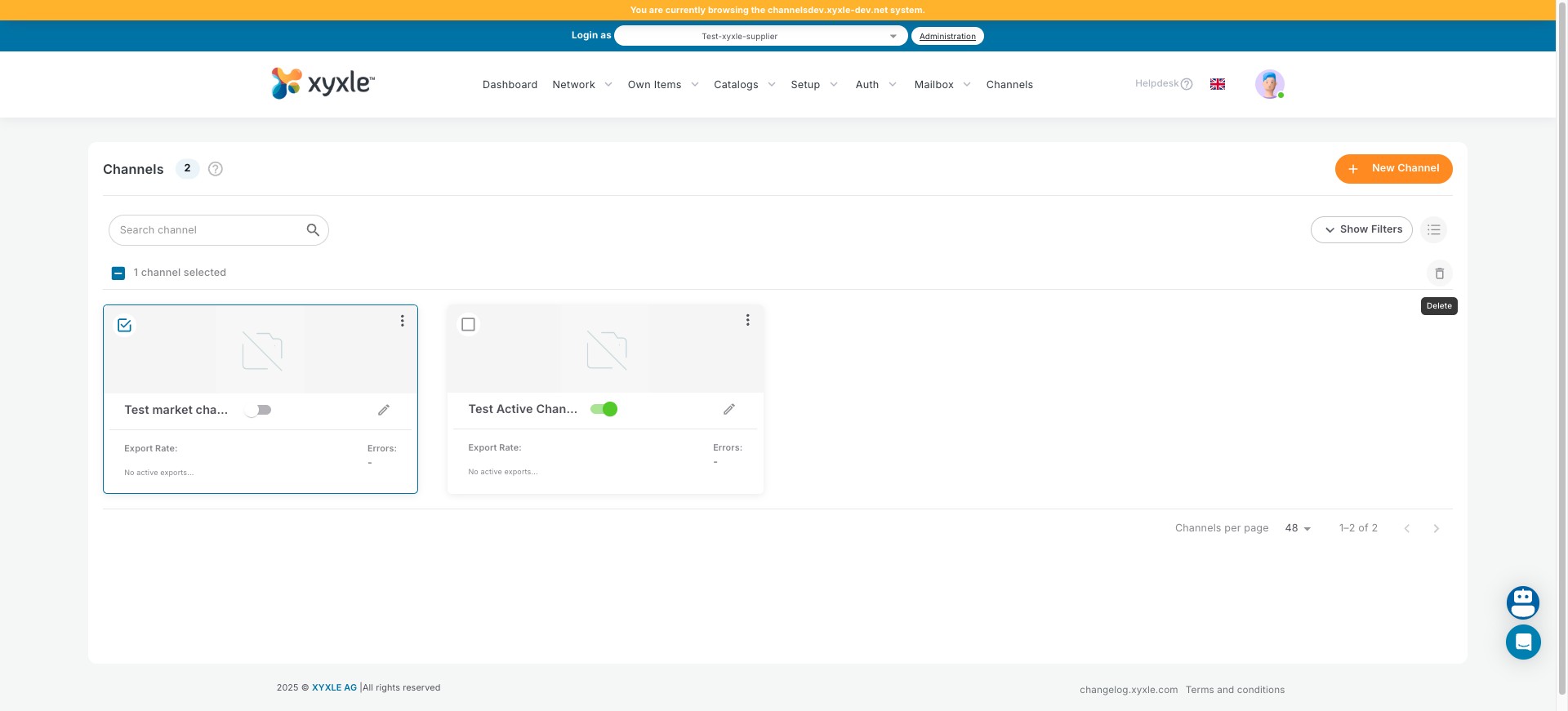
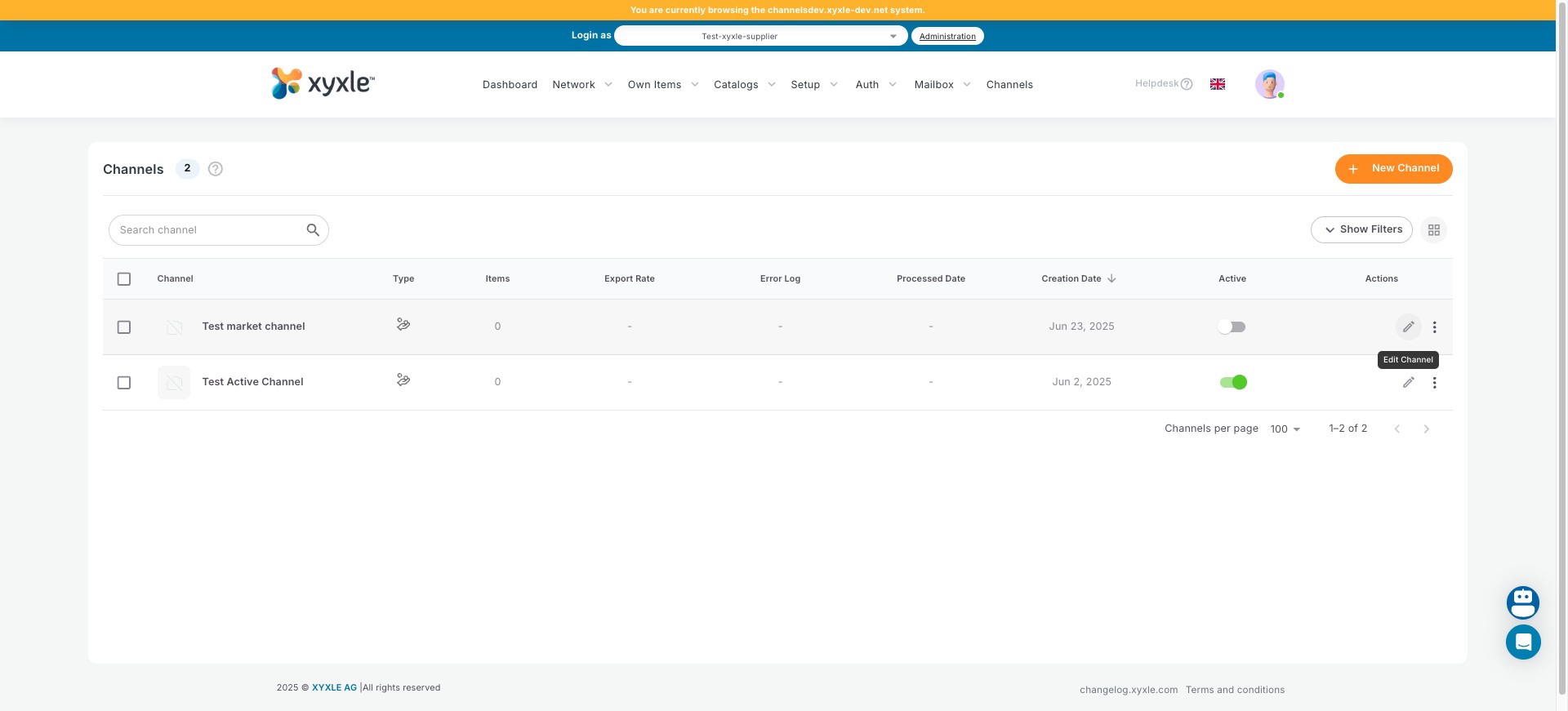
Click the icon to switch between grid view and list view for your channels.
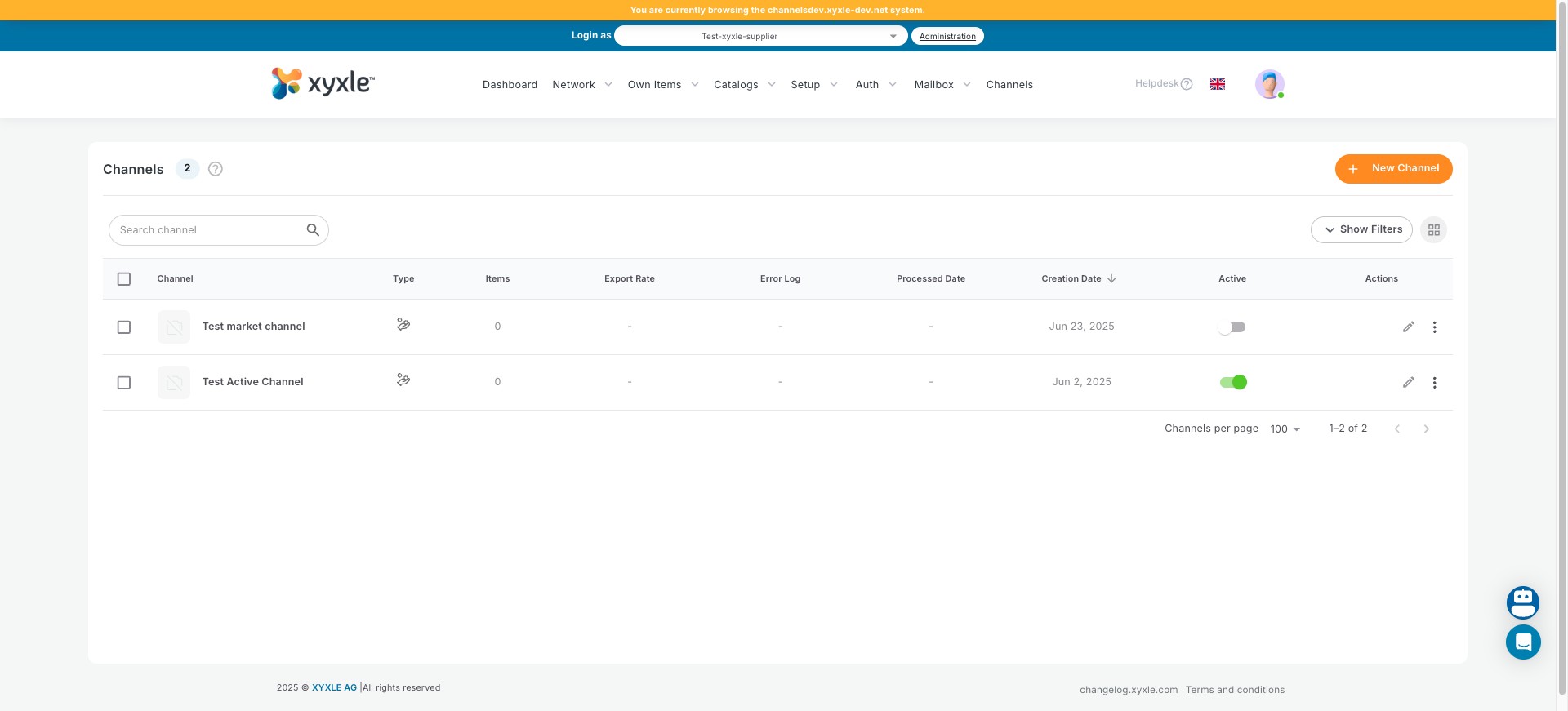
Click to select all channels.
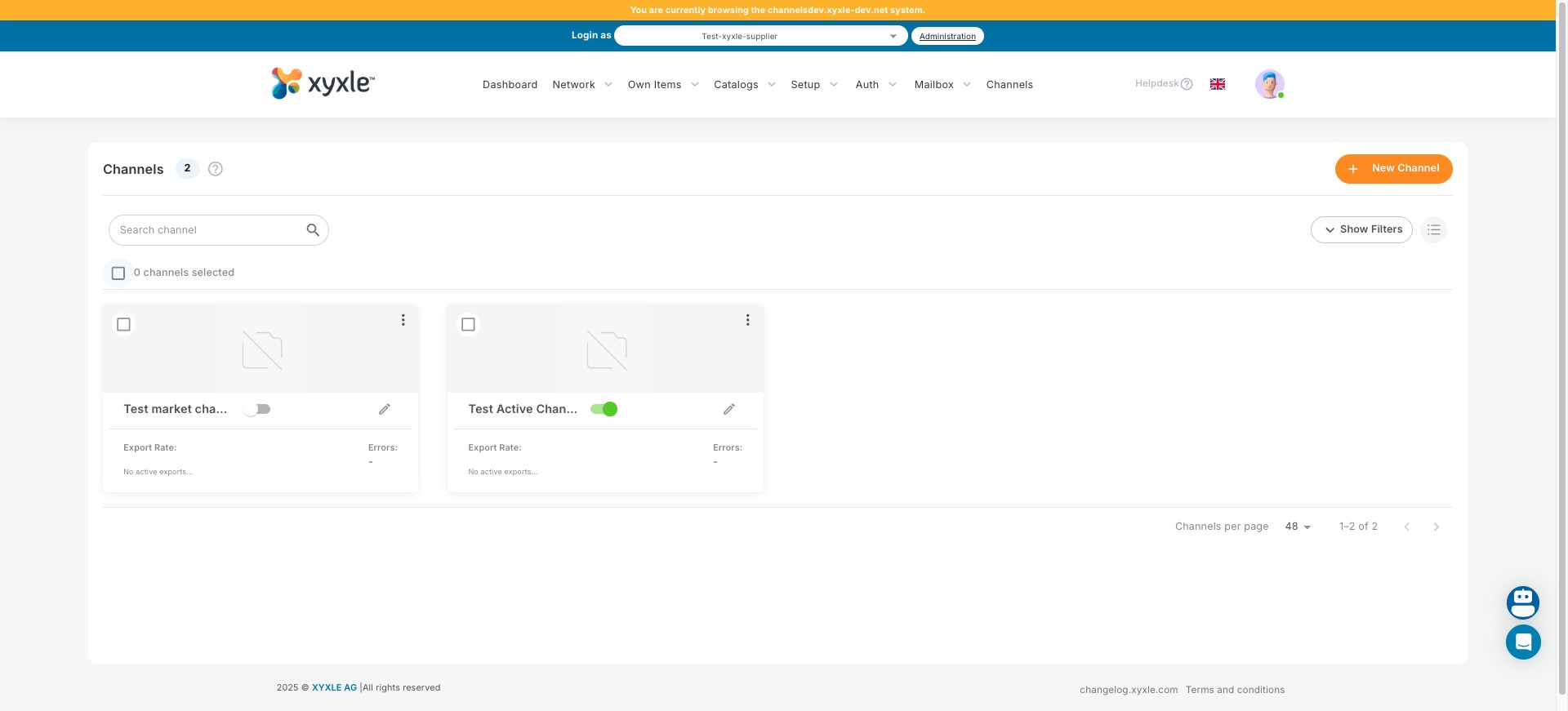
Click this icon to switch between views.
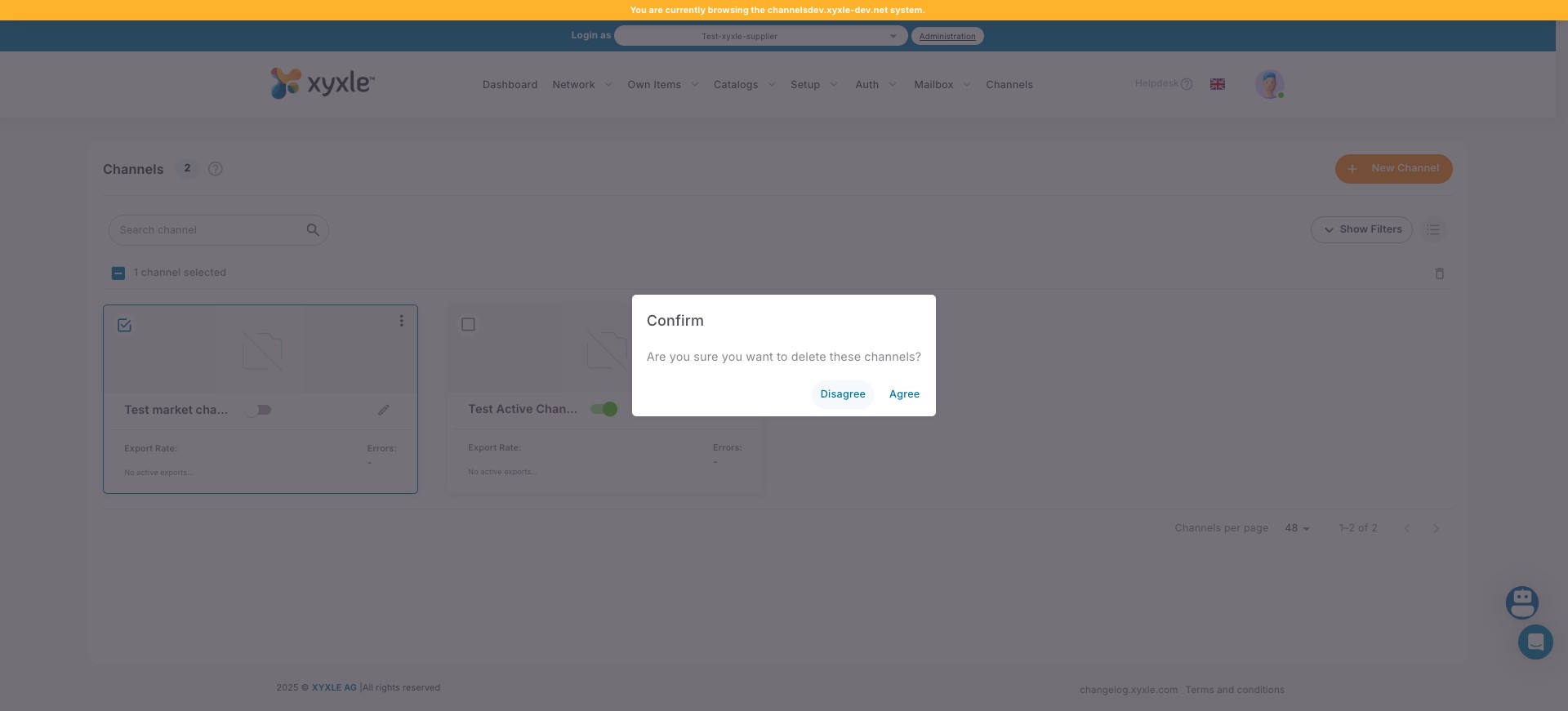
Click on "Agree" if you want to delete this channel.
Click the icon to edit the channel.
Click the icon to return to the Channels Dashboard.
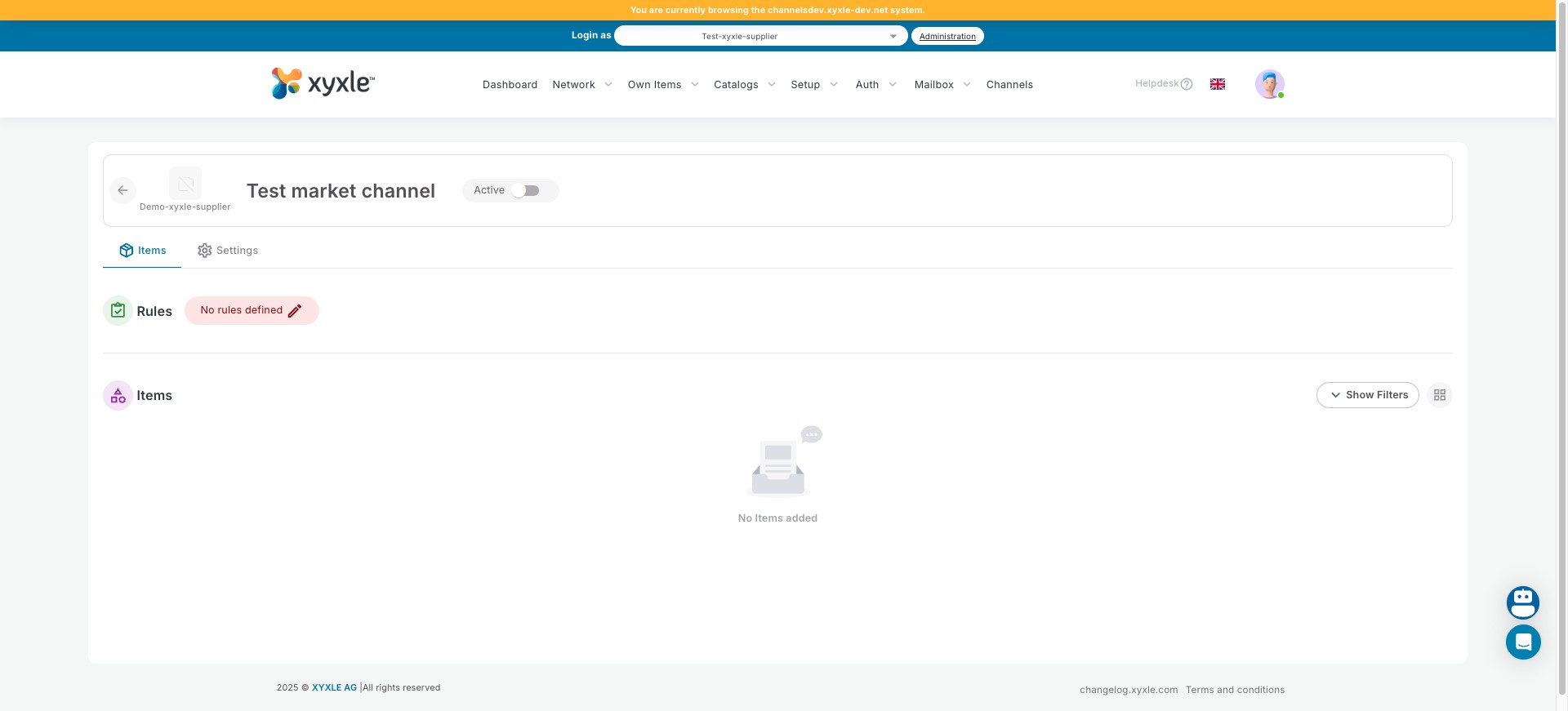
Click the channel name to edit its details.
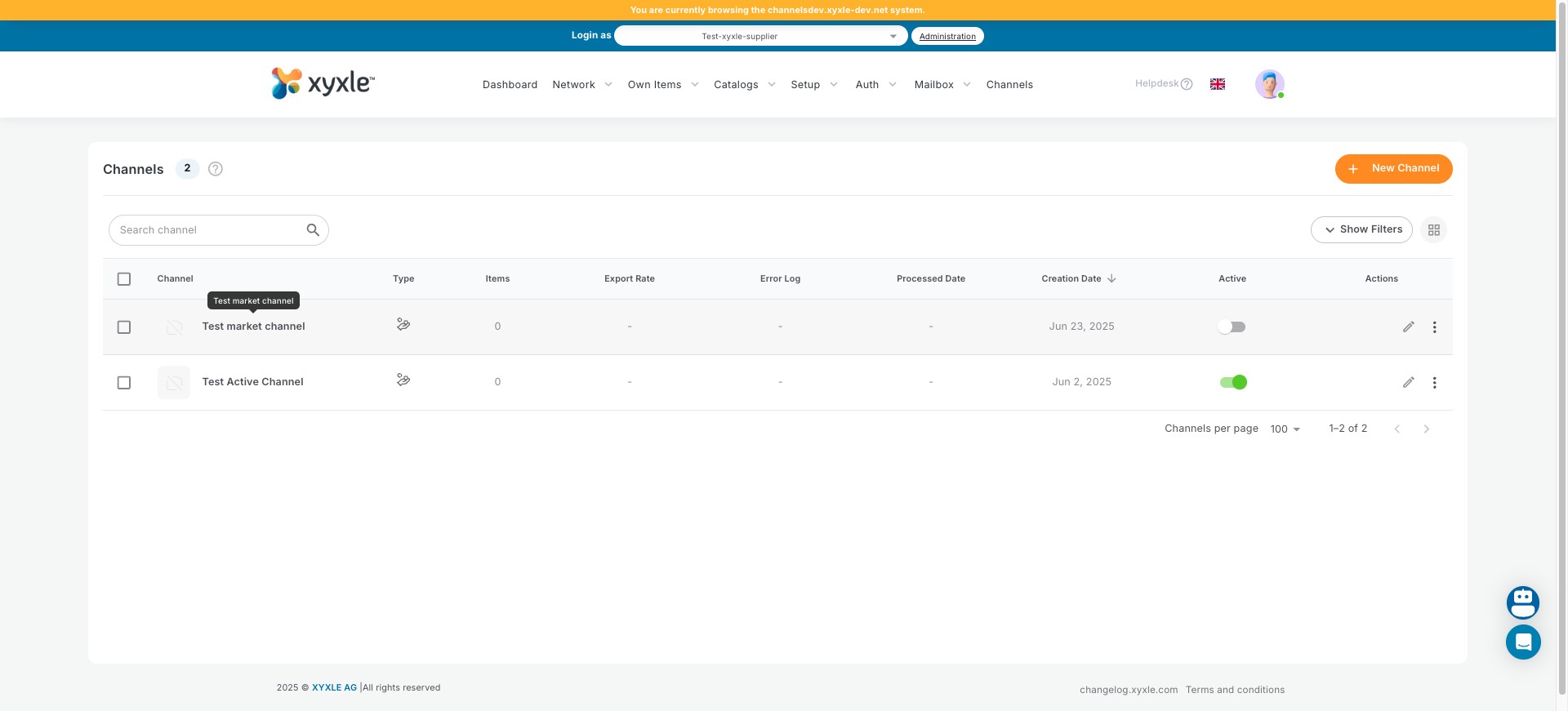
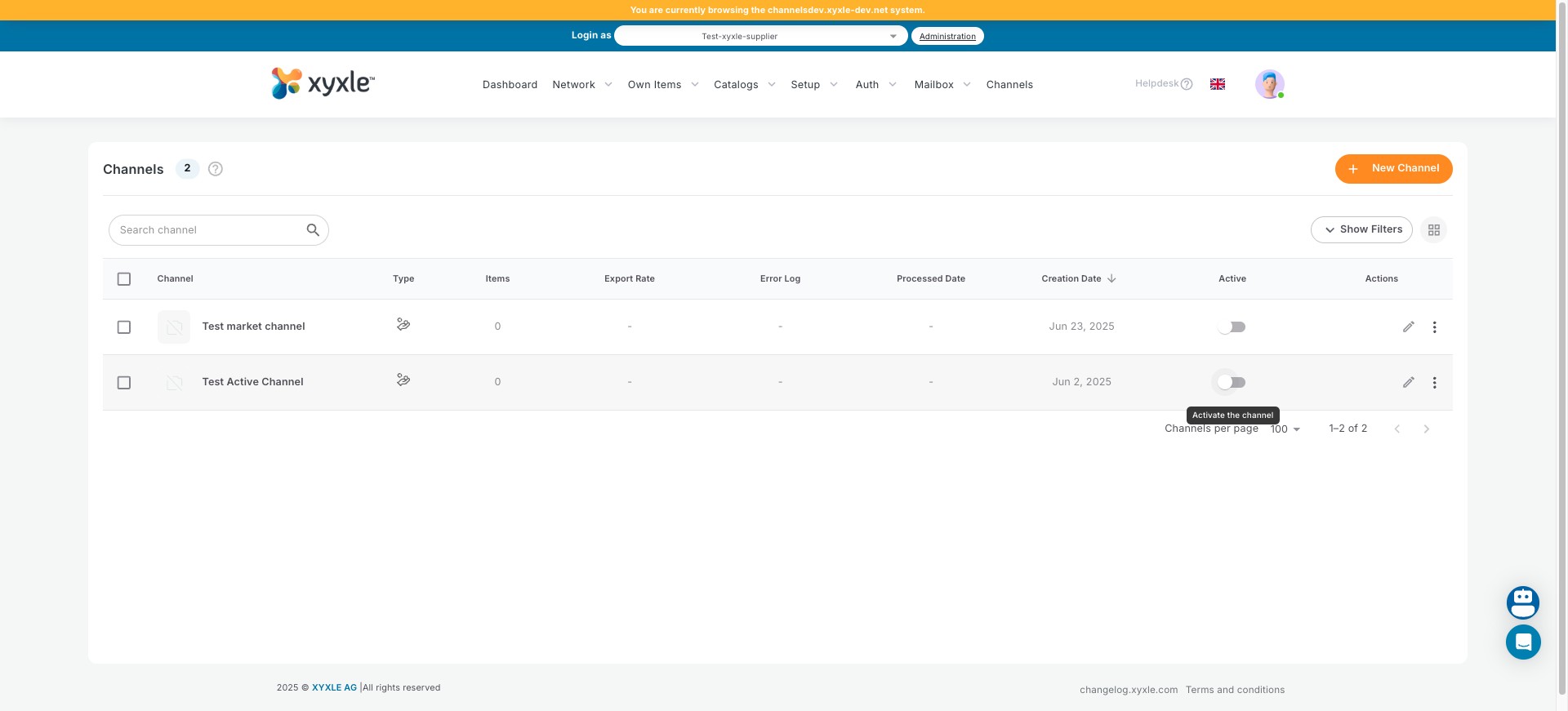
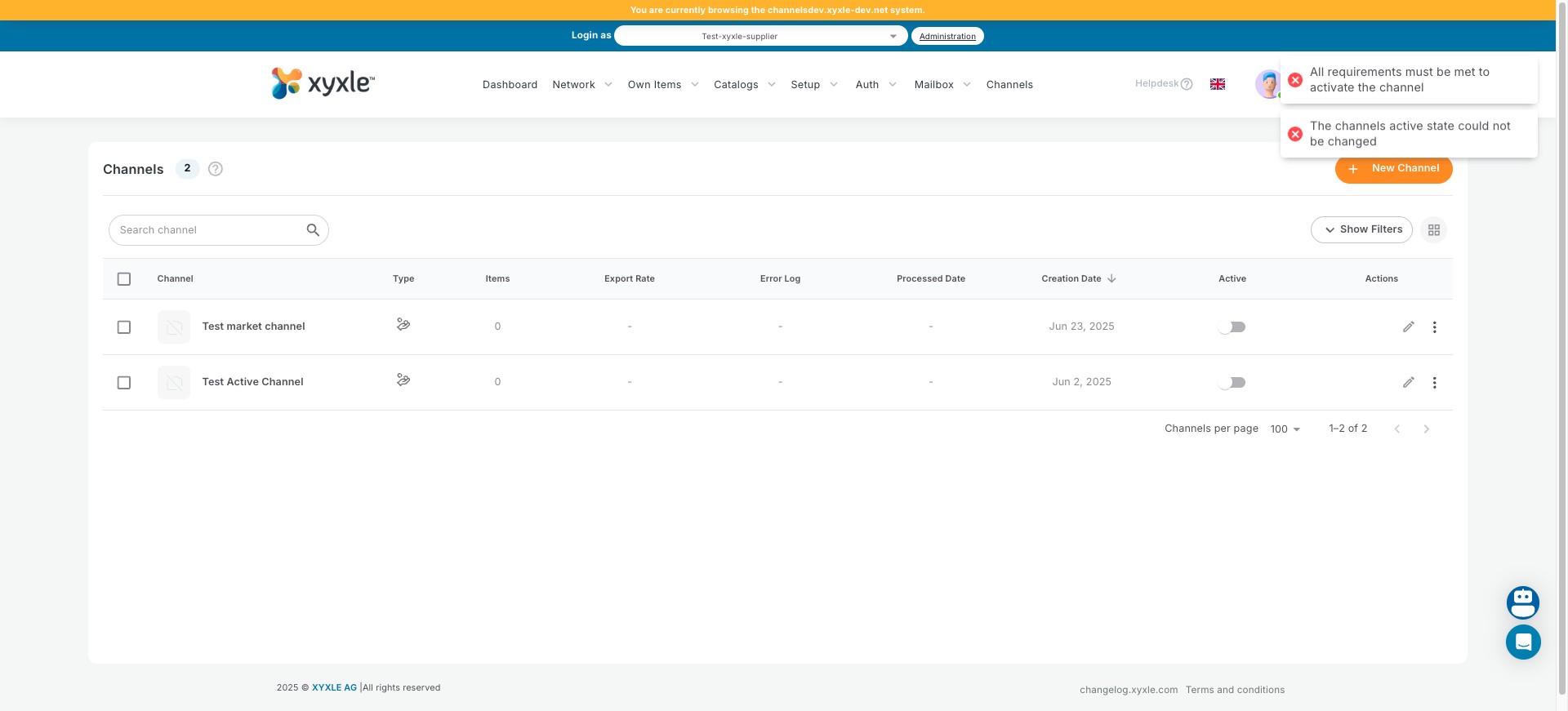
Set the status to either Active or Inactive. When a channel is inactive, data transmission to the receiver will be disabled.
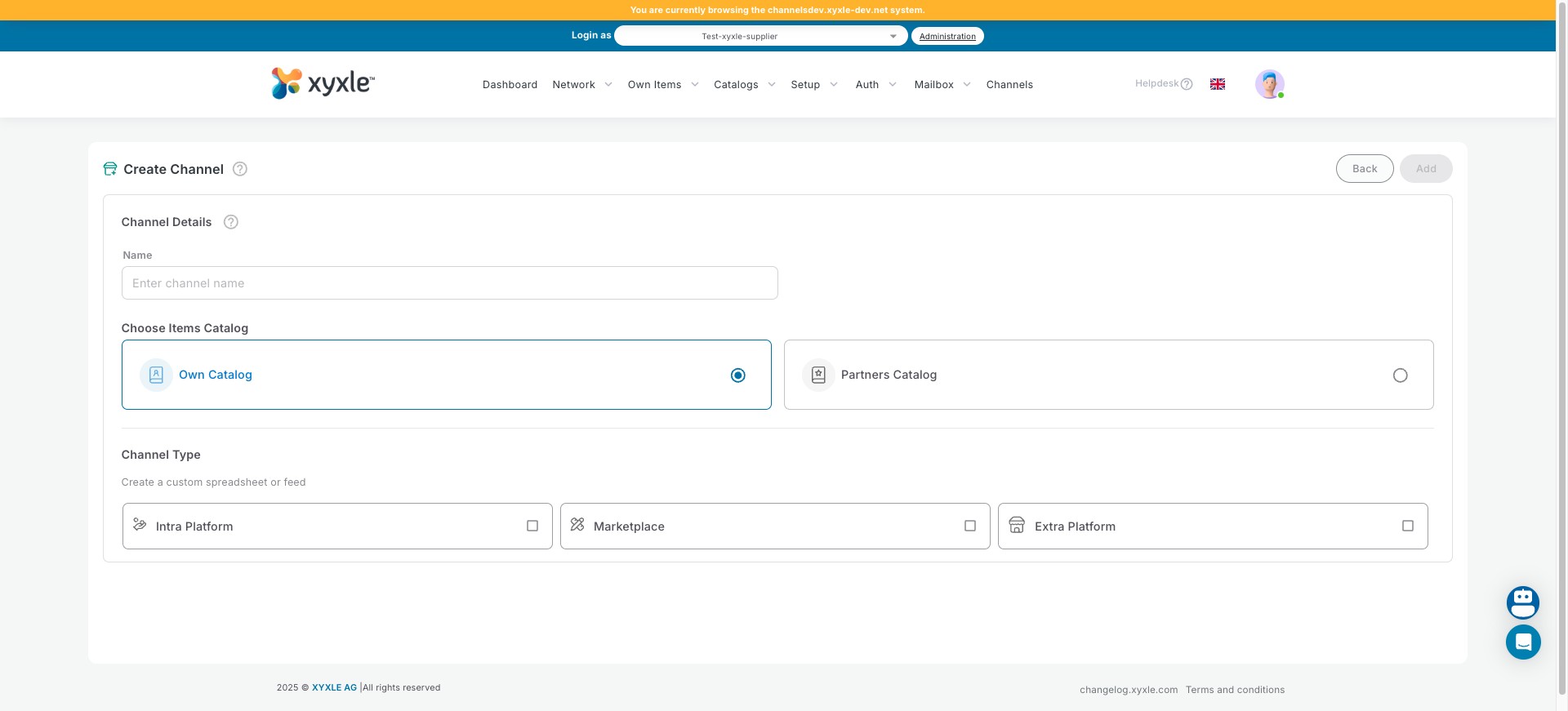
Click on "New Channel" to create a new Channel.
Click on "Back".
Done 🚀